How to install and run the free Rhino Backtest Manager demo
The free demo of Rhino Backtest Manager lets you place and manage manual trades inside the MetaTrader Strategy Tester before you decide whether to buy it. This guide takes you from download to your first test trade.
The demo is downloaded from the MQL5 Market, so you always get the current version — there is no file here to go stale.
Get the demo
Open the product page and press Free Demo:
MetaTrader installs it for you and puts it under Market in the Navigator, so there is no copying of files into folders.
What the demo can and cannot do
| Demo | Full version | |
|---|---|---|
| Works in the Strategy Tester | Yes | Yes |
| Trades on a live or demo account | No | Yes |
| Trade panel, risk sizing, SL / TP | Yes | Yes |
| Statistics, watch list, day monitor | Yes | Yes |
This is the normal MQL5 Market rule: a demo of a Market product runs in the Strategy Tester only. That is not a limitation of this tool — it applies to every paid product on the Market, and it is exactly where a backtest manager is useful anyway.
Install the fonts first
Before the first run, install the fonts that come with the product. Without them the panel does not lay out correctly and buttons can appear cut off or overlapping. The fonts are attached to the user manual.
Install them the normal Windows way: select the font files, right-click, then Install. Restart MetaTrader afterwards.
Run it in the Strategy Tester
- Open the Strategy Tester: View → Strategy Tester, or press Ctrl + R
- In Expert Advisor, choose Rhino Backtest Manager (under Market)
- Pick the symbol, timeframe and date range you want to practise on
- Set the modelling mode. Every tick is the most realistic; 1 minute OHLC is much faster and fine for getting used to the panel
- Choose Visual mode — the panel only appears in visual mode
- Press Start
The chart opens with the trade panel on it. Use the speed slider at the top to slow the replay down, or pause it while you set up a trade.
Place your first trade
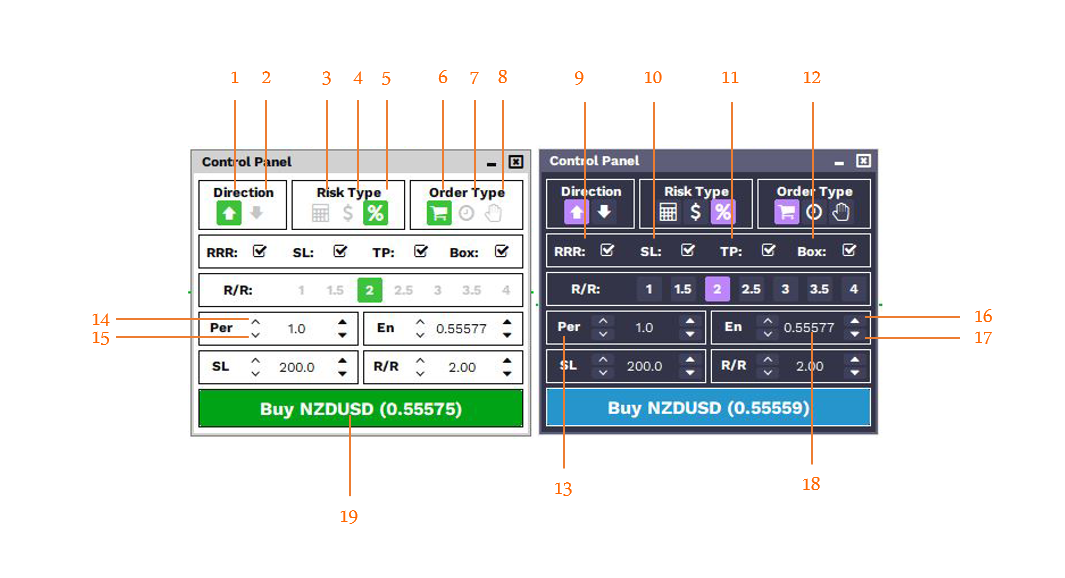
- Choose how the volume is calculated: fixed lot size, a fixed budget, or a percentage of balance
- Set the Stop Loss and Take Profit distances, or pick one of the preset risk-reward ratios and let them be calculated for you
- Press Buy or Sell
The trade appears in the Trades window with its live result, and the levels are drawn on the chart. From there you can close it, or let the Stop Loss or Take Profit do it for you.
If something does not look right
| What you see | What to do |
|---|---|
| The panel does not appear at all | Visual mode was not enabled — restart the test with Visual mode ticked |
| Text overlaps or buttons look cut off | The fonts are not installed. Install them and restart MetaTrader |
| The product is not in the list | Wait for the download to finish, then right-click Expert Advisors → Refresh |
| Nothing happens when you press Buy | Check that Algo Trading is enabled |
Next steps
- The full user manual explains every window and button
- Rhino Backtest Manager MT5 and MT4 on this site
If something in the demo does not behave as described, tell me through the contact page — it helps the next release.
Originally published on my MQL5.com blog.